This page covers how to import and export data to and from the Vals platform: setting up a test suite, uploading historical Q&A pairs, or pulling run results for offline analysis.
To get started
  • If you’re building a new suite, start with Importing Data.
  • If you’ve already run an evaluation and want to analyze results, jump to Exporting Results.

Importing Data

Test Suite

A full test suite import includes tests, checks, context, tags, and any associated files. Only Test Input is required; all other fields are optional, so you can import inputs alone without defining any checks. Imported tests are appended after any existing tests in the suite. When tests are imported, they are added / appended to the test suite after existing tests. If you want to import existing model outputs and run checks against them, see this page Import Supported formats: CSV, JSON, ZIP
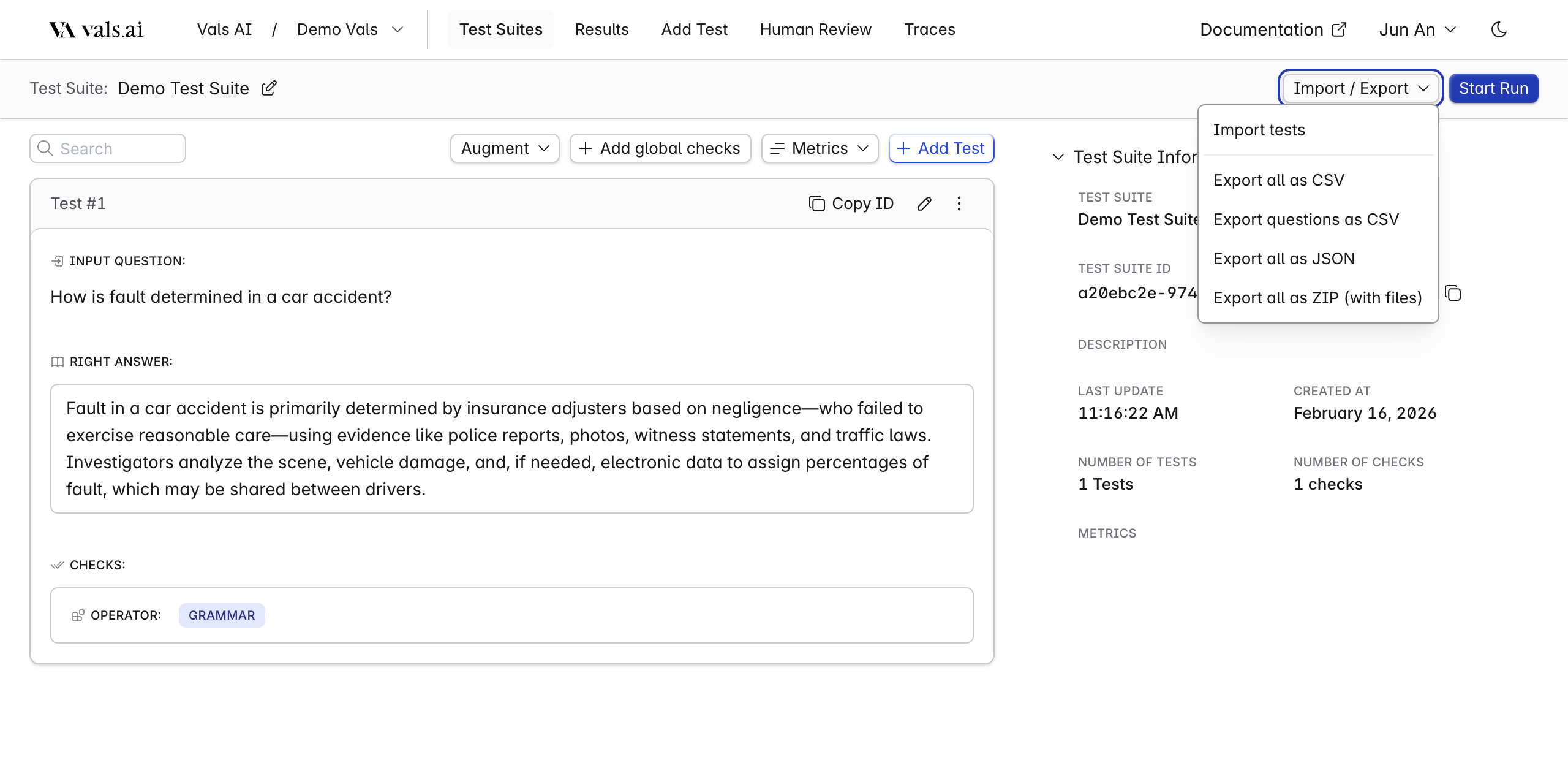
If your tests include file attachments (documents, images, etc.), use ZIP. Attached files should be stored under documents/ inside the ZIP.
📎 View CSV Example · 📎 View CSV Example (with Right Answer) · 📎 View ZIP Example (Files)

Test Columns

These columns define an individual test: the input sent to the model and any supporting context. Only Test Input field is required.
ColumnTypeDescription
Test InputstrThe prompt or question sent to the LLM (e.g., What is burden shifting under Title VII?)
Right Answer *strThe expected correct answer
TagsstrLabels for organizing tests (e.g., math, law). Spread across rows. See Formatting Rules
Files * *strFilename or path to an attached file (e.g., documents/doc1.pdf)
Context KeysstrKey for injecting context into the test (e.g., date)
Context ValuesstrCorresponding value for the context key (e.g., 2024-01-01)
* In most cases, either Right Answer or Checks are used. Learn more about Right Answer
** Files will only work as expected for the .zip upload.

Check Columns

Checks define how LLM responses are evaluated within a test.
ColumnTypeDescription
OperatorstrThe evaluation method (e.g., includes, excludes)
CriteriastrThe value checked against the LLM response (e.g., age, sex, religion)
ColumnTypeDescription
WeightintNumeric importance for scoring (e.g., 1, 2)
CategorystrLabel grouping checks by purpose (e.g., Style, Correctness)
Extraction PromptstrInstructions for pulling a specific value from the LLM output before evaluating
Conditional OperatorstrOperator for conditional evaluation
Conditional CriteriastrCriteria used in conditional evaluation
Example Typestrpositive (should pass) or negative (should fail)
Example ValuestrA sample value used for the check

Tips for Formatting Imports

Spreading values down columns

For fields that support multiple values (like Tags or Checks), each value goes in its own row beneath the test, rather than being comma-separated in a single cell. Example:
Test IdTest InputTagsOperatorCriteria
19025787-…Where is the Bay Area located?BayincludesCalifornia
Easyincludes_exactlyNorthern California, United States
excludesLos Angeles
excludes_exactlyAtlantic Ocean
Each row without a new Test Input belongs to the previous test. Tags stack down, and each check gets its own row.

Encoding

We support multiple encoding types. UTF-8 is strongly recommended for compatibility.

Criteria requirement

All non-unary operators require a Criteria value. Leaving it blank will cause the import to fail.

Global checks

When importing a file with global checks and tests, include a blank row between the global checks section and the tests section.

Exporting Results

Test Suite

Supported formats: CSV, JSON, ZIP

Test Columns

ColumnDescription
Test IdUnique identifier for the test
Test InputThe prompt or question sent to the LLM (e.g., What is burden shifting under Title VII?)
Right AnswerThe expected correct answer
TagsLabels for organizing tests (e.g., math, law). Spread across rows. See Formatting Rules
FilesFilename or path to an attached file (e.g., documents/doc1.pdf)
Context KeysKey for injecting context into the test (e.g., date)
Context ValuesCorresponding value for the context key (e.g., 2024-01-01)

Check Columns

Checks define how LLM responses are evaluated within a test.
ColumnDescription
OperatorThe evaluation method (e.g., includes, excludes)
CriteriaThe value checked against the LLM response (e.g., age, sex, religion)
WeightNumeric importance for scoring (e.g., 1, 2)
CategoryLabel grouping checks by purpose (e.g., Style, Correctness)
Extraction PromptInstructions for pulling a specific value from the LLM output before evaluating
Conditional OperatorOperator for conditional evaluation
Conditional CriteriaCriteria used in conditional evaluation
Example Typepositive (should pass) or negative (should fail)
Example ValueA sample value used for the check

Auto Eval Results

Results are best reviewed directly in the platform. If you need to export them for custom reporting or offline storage, we support CSV and JSON. Export Auto Eval Supported formats: CSV, JSON
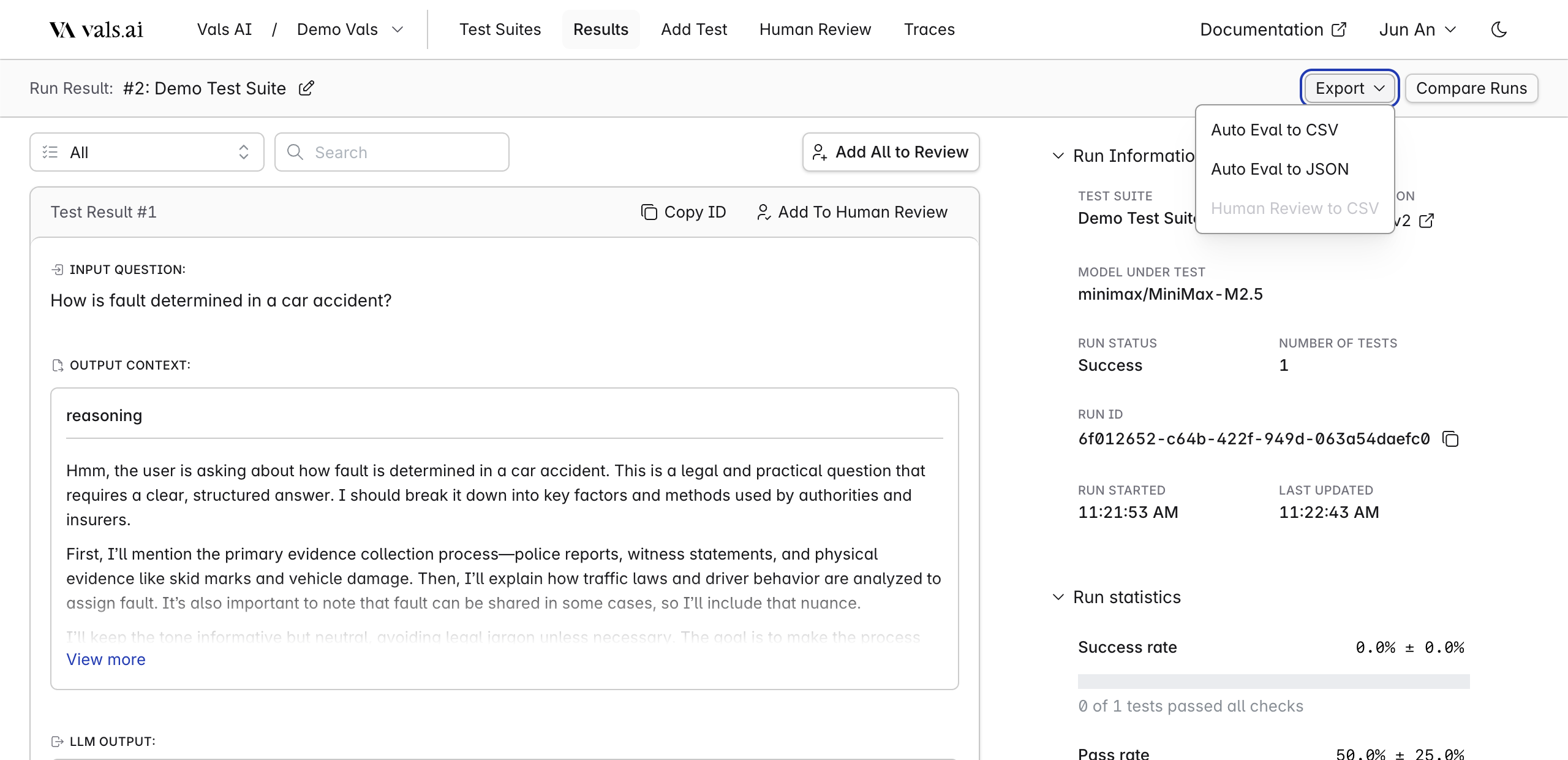
We recommend CSV if the data needs to be reviewed by non-technical users, and JSON for any programmatic use case.
📎 View CSV Example · 📎 View JSON Example

Run Result

Top-level summary for the entire evaluation run.
ColumnDescription
Run IdUnique identifier for the run
Test Suite IdID of the suite that was run
Test Suite TitleName of the suite
Run StatusOutcome of the run (e.g., success, error)
Run Error MessageError message if the run failed
Run Error AnalysisLLM-generated analysis of failed check feedback
Completed AtWhen the run finished
Run ParametersConfiguration used during the run
Percent Of Checks PassedShare of individual checks that passed
Amount Of Checks PassedCount of checks that passed
Standard Deviation For Checks PassedVariability in check pass rates
Percent Of Tests PassedShare of tests where all checks passed
Amount Of Tests PassedCount of fully passing tests
Standard Deviation For Tests PassedVariability in test pass rates
Needs Review PercentageShare of results flagged for human review

Test Results

Per-test breakdown of inputs, outputs, and token usage.
ColumnDescription
Test Result IdUnique identifier for this test result
Test IdIdentifier of the originating test
Test StatusOutcome (e.g., success, error)
Test Error MessageError message if the test failed
Test InputThe prompt sent to the LLM
LLM OutputThe response generated by the LLM
FilesFiles passed to the LLM during the test
In TokensNumber of input tokens consumed
Out TokensNumber of output tokens generated
DurationTime taken to generate the response (seconds)
Input Context KeysContext keys used in this test
Input Context ValuesCorresponding context values
Output Context KeysKeys referencing extracted output context
Output Context ValuesExtracted values from the LLM output

Check Results (Auto Eval)

Note: Check columns in an export differ from check columns in a suite definition. Export checks reflect evaluation outcomes, not configuration.
ColumnDescription
OperatorThe evaluation operator used
CriteriaThe criteria evaluated against the LLM output
Auto EvalEvaluation result (e.g., pass, fail; numeric scores left as-is)
Edited Auto EvalOverridden score, if a human reviewer modified the result
Edited Auto Eval FeedbackReviewer’s reason for the override
Confidence LevelModel’s confidence in its evaluation (e.g., high, low)
FeedbackLLM-generated explanation of the evaluation decision
WeightThe check’s scoring weight
ExtractorValue extracted from LLM output using the extraction prompt
Conditional OperatorOperator used in conditional evaluation
Conditional CriteriaCriteria for the conditional check
CategoryCheck category (e.g., Style, Correctness)
Example Typepositive or negative
Example ValueExample value associated with the check

Human Review Results

Export completed human review data for analyzing reviewer agreement, test-level feedback, and metric evaluations outside the platform. Supported formats: CSV
Only completed reviews will be included in exports.
📎 View Human Review Example

Run Review

ColumnDescription
Run IdIdentifier of the evaluated run
Run NameDisplay name of the run
Run Review StatusReview completion status (e.g., completed)
Run Review Created ByUser who initiated the review
Run Review Created AtWhen the review was created
Run Review Completion TimeWhen the review was completed
Number Of ReviewsNumber of reviewers assigned per test result
Assigned ReviewersUsers assigned to review
Pass RateShare of checks marked as pass by reviewers
Flagged RateShare of checks flagged by reviewers
Auto Eval ↔ Reviewer AgreementAgreement rate between automated and human scores
Reviewer ↔ Reviewer AgreementAgreement rate across reviewers

Test Review

ColumnDescription
Test Result IdIdentifier for the reviewed test result
Test InputThe original prompt
LLM OutputThe LLM’s response
FilesFiles included in the test
Completed AtWhen the review was submitted
Completed ByReviewer who completed it
Test Review FeedbackReviewer’s written feedback

Human Review Check

ColumnDescription
Check TypeAuto-eval review for checks from auto eval; otherwise, drawn from the review template
Metric NameName of the metric from the review template (blank for auto eval checks)
OperatorEvaluation operator
CriteriaCriteria evaluated
Auto EvalOriginal automated score
Reviewer ResponseHuman reviewer’s score or feedback (e.g., pass, fail)

Troubleshooting

Common issues:
  • Test Input is missing: Ensure every test has a value in the Test Input column.
  • Global checks: If your file includes global checks alongside tests, leave a blank row between the global checks setion and the tests section.
  • Duplicate questions when importing Q&A pairs: Check for repeated rows in your CSV.
  • Missing criteria: Non-unary operators require a Criteria value. Don’t leave this blank.
  • Values comma-separated in one cell instead of spread across rows: See Formatting Rules above.
If you run into an issue that isn’t covered here, reach out at contact@vals.ai.