> ## Documentation Index
> Fetch the complete documentation index at: https://docs.vals.ai/llms.txt
> Use this file to discover all available pages before exploring further.
# Right Answers
Generally, our platform works by defining an input, and a set of operator/criteria pairs. However, there's also another way to do evaluations, where you define an input and a "right answer". You compare the right answer to the LLM output and see if it matches.
We support this workflow in the platform.
## Using Right Answers in the Web App
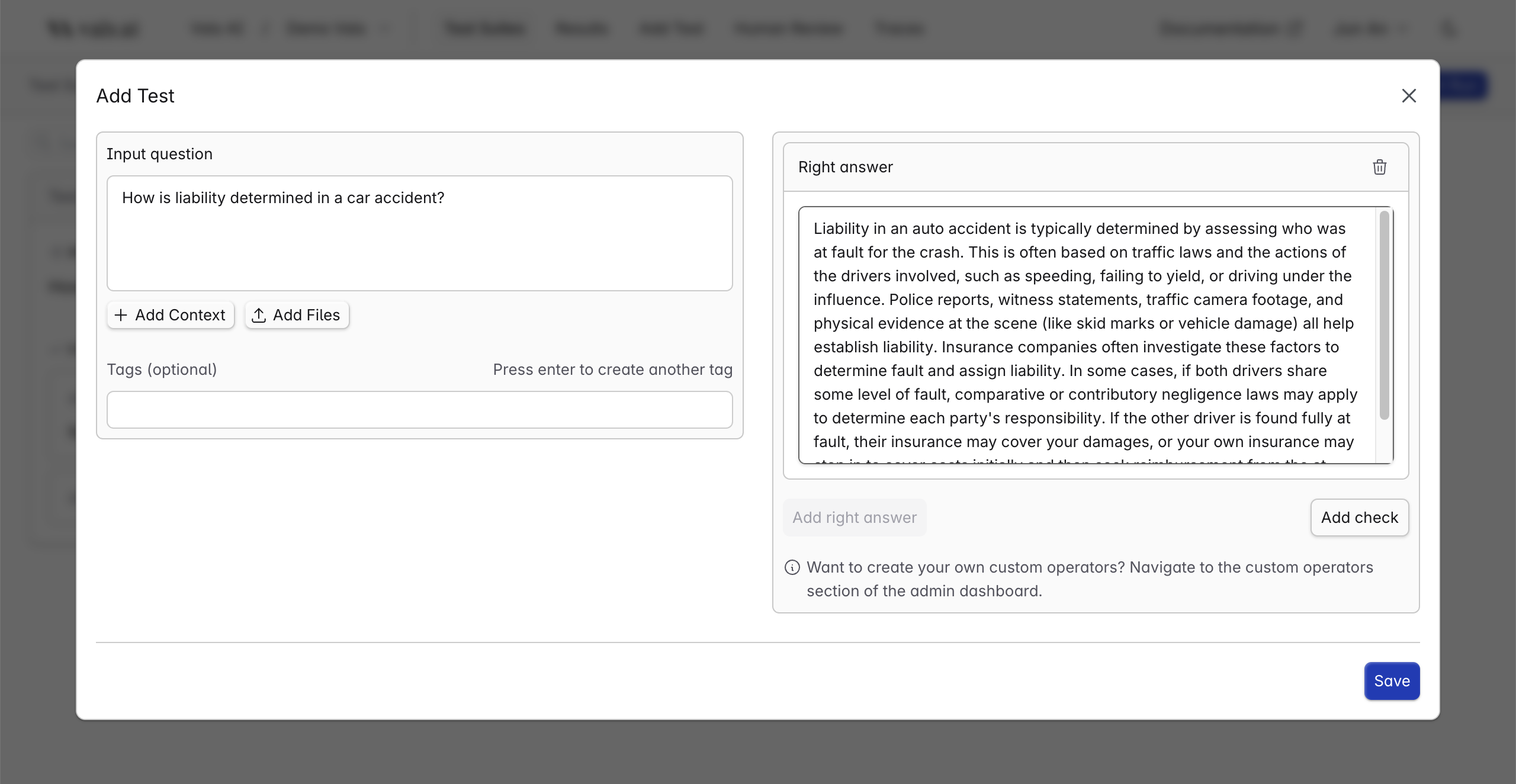
To add a Right Answer, in the Add Test pane, press "Add Right Answer".
 ## How Right Answer Comparison Works
First, you add a right answer to each test (see below how to this in the web app and SDK).
**Important**: When you add a Right Answer, our system automatically generates **three checks** for every test:
* `golden_check_content` - Content similarity comparison
* `golden_check_style` - Style similarity comparison
* `golden_check_format` - Format structure comparison
These will appear in addition to any manual checks you've defined.
When you run the test suite, our system will then compare the LLM output to your right answer on three axes:
* **Content**: It will compare to the golden answer based on the content similarity - passing if the contents are similar, failing if they are not.
* **Style**: It will do a comparison based on the style of the text, passing only if the styles are similar.
* **Format**: It will ensure that the outputs are formatted the same.
## How Right Answer Comparison Works
First, you add a right answer to each test (see below how to this in the web app and SDK).
**Important**: When you add a Right Answer, our system automatically generates **three checks** for every test:
* `golden_check_content` - Content similarity comparison
* `golden_check_style` - Style similarity comparison
* `golden_check_format` - Format structure comparison
These will appear in addition to any manual checks you've defined.
When you run the test suite, our system will then compare the LLM output to your right answer on three axes:
* **Content**: It will compare to the golden answer based on the content similarity - passing if the contents are similar, failing if they are not.
* **Style**: It will do a comparison based on the style of the text, passing only if the styles are similar.
* **Format**: It will ensure that the outputs are formatted the same.