> ## Documentation Index
> Fetch the complete documentation index at: https://docs.vals.ai/llms.txt
> Use this file to discover all available pages before exploring further.
# Creating a Test Suite
## Intro
One of the core concepts within the Vals Platform is the **Test Suite**. A test suite is how you define what inputs you expect to receive from users, and how you expect your model to behave in response to those inputs.
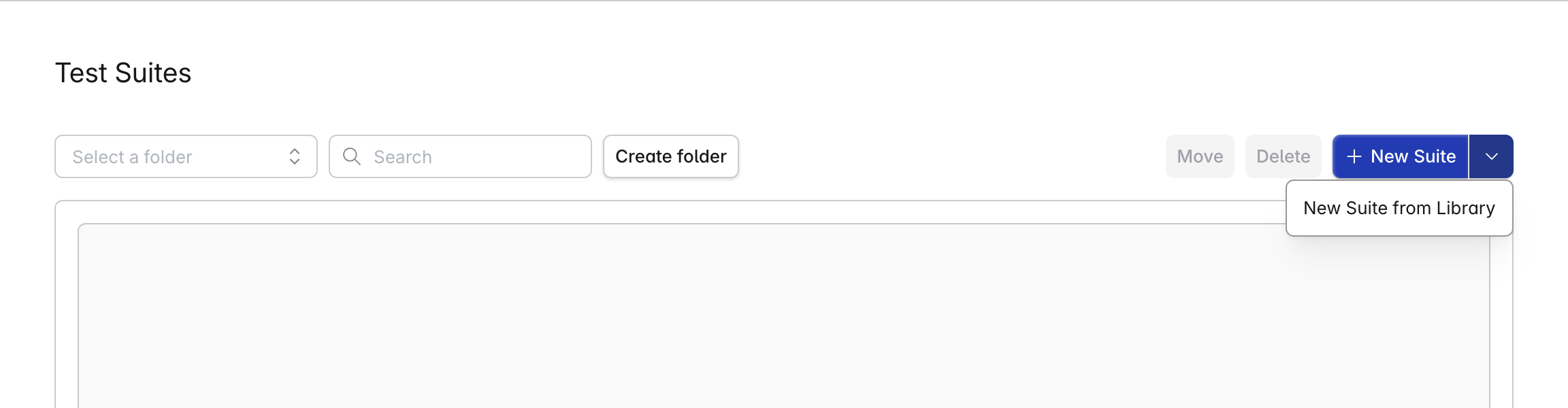
You can view all of the Suites in your organization by going to [platform.vals.ai/project/default-project/suites](https://platform.vals.ai/project/default-project/suites). To create a new Test Suite, click the `+ New Suite` button.
**Quick Start** -- Create a Suite from our Library, which includes Basic Examples, LegalBench, CUAD (Contract Understanding Atticus Dataset). Click the dropdown on the right of the button, and select `New Suite from Library`
 ## Adding Tests
**Test Suites** are composed of **Tests**. Each Test tests *one* unique input to your model. It also has one or more "checks" -- each check looks for a specific thing in the model's response.
For example, you may have a check for grammar, or a check to make sure the model includes a word in its response.
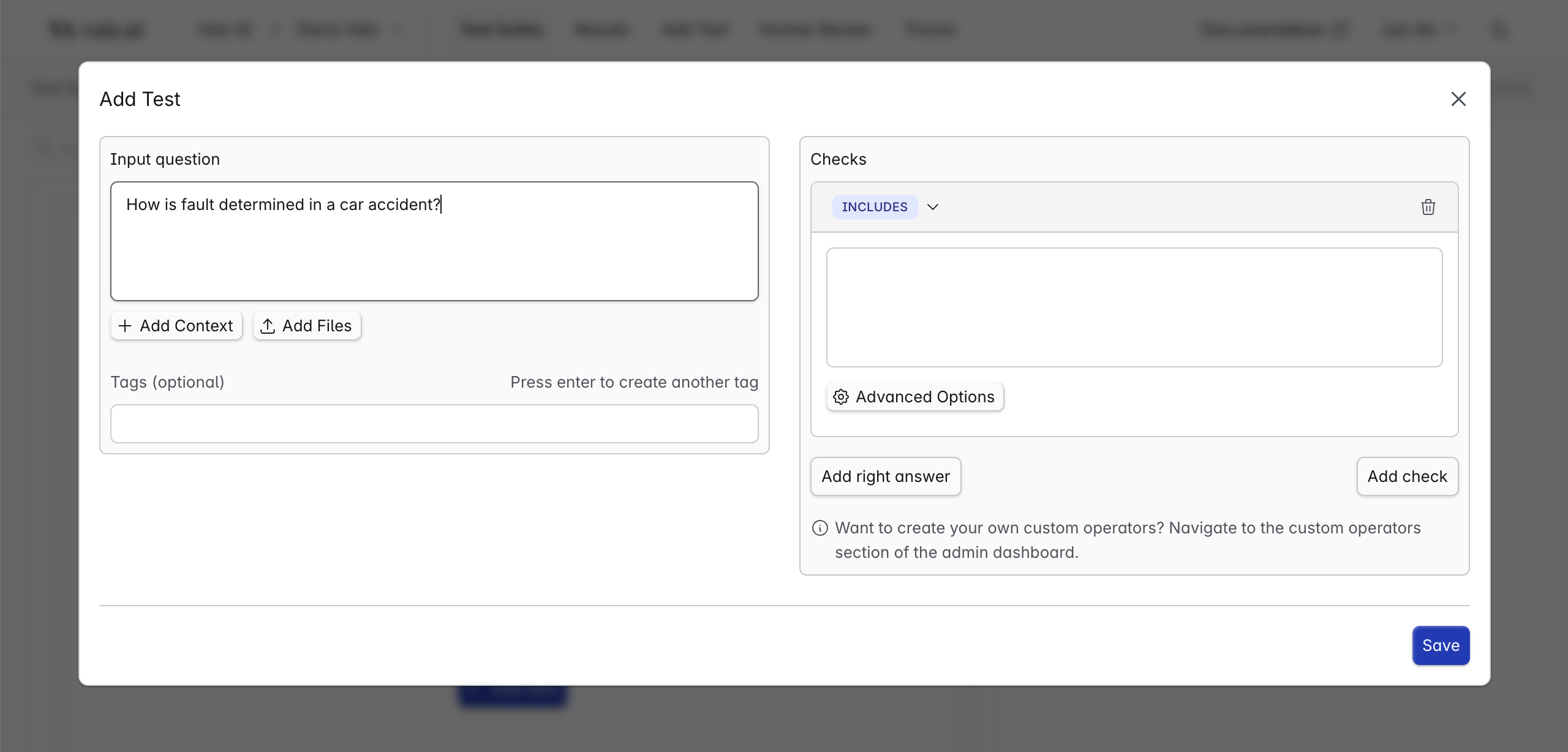
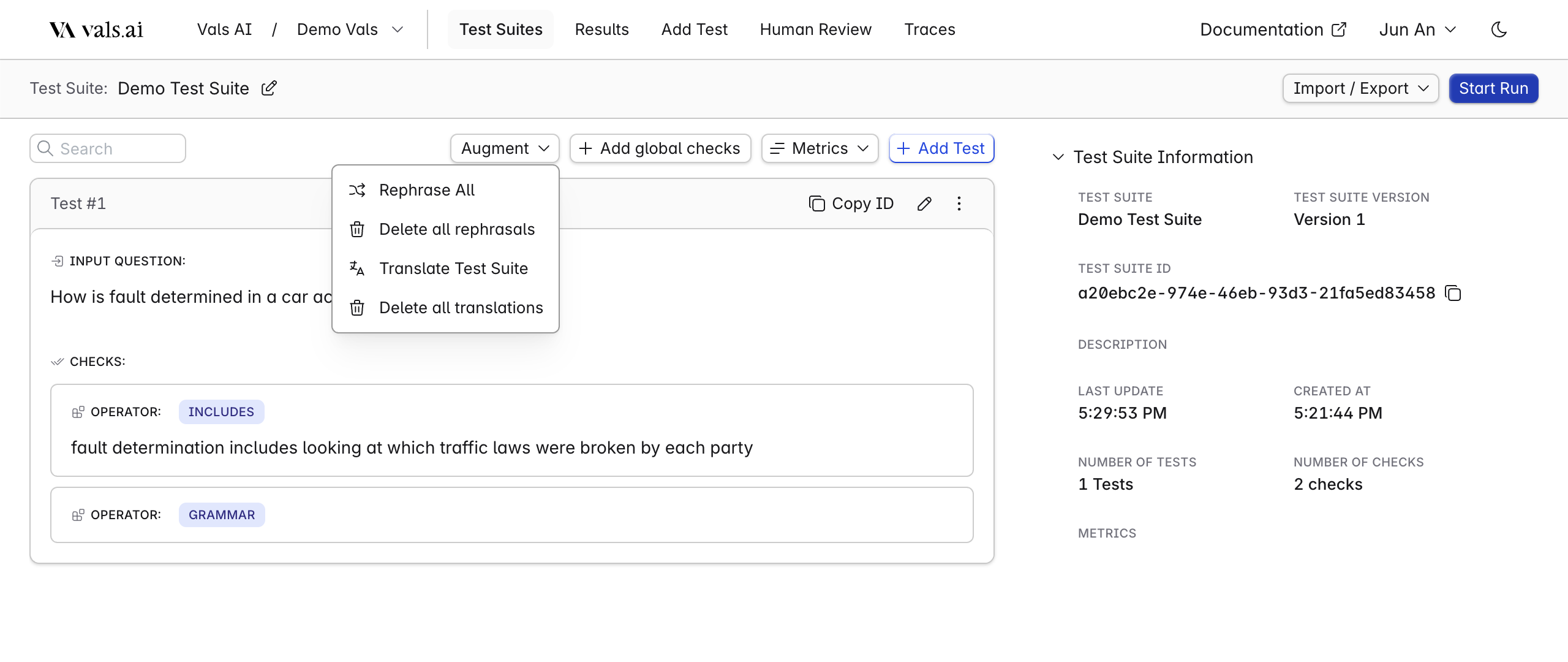
To add a test, press `Add Test`. Then, you can enter the Test Input you would like to submit to your model. For example, if your application is a copilot for personal injury law, an example Test Input would be "How is fault determined in a car accident?"
## Adding Tests
**Test Suites** are composed of **Tests**. Each Test tests *one* unique input to your model. It also has one or more "checks" -- each check looks for a specific thing in the model's response.
For example, you may have a check for grammar, or a check to make sure the model includes a word in its response.
To add a test, press `Add Test`. Then, you can enter the Test Input you would like to submit to your model. For example, if your application is a copilot for personal injury law, an example Test Input would be "How is fault determined in a car accident?"
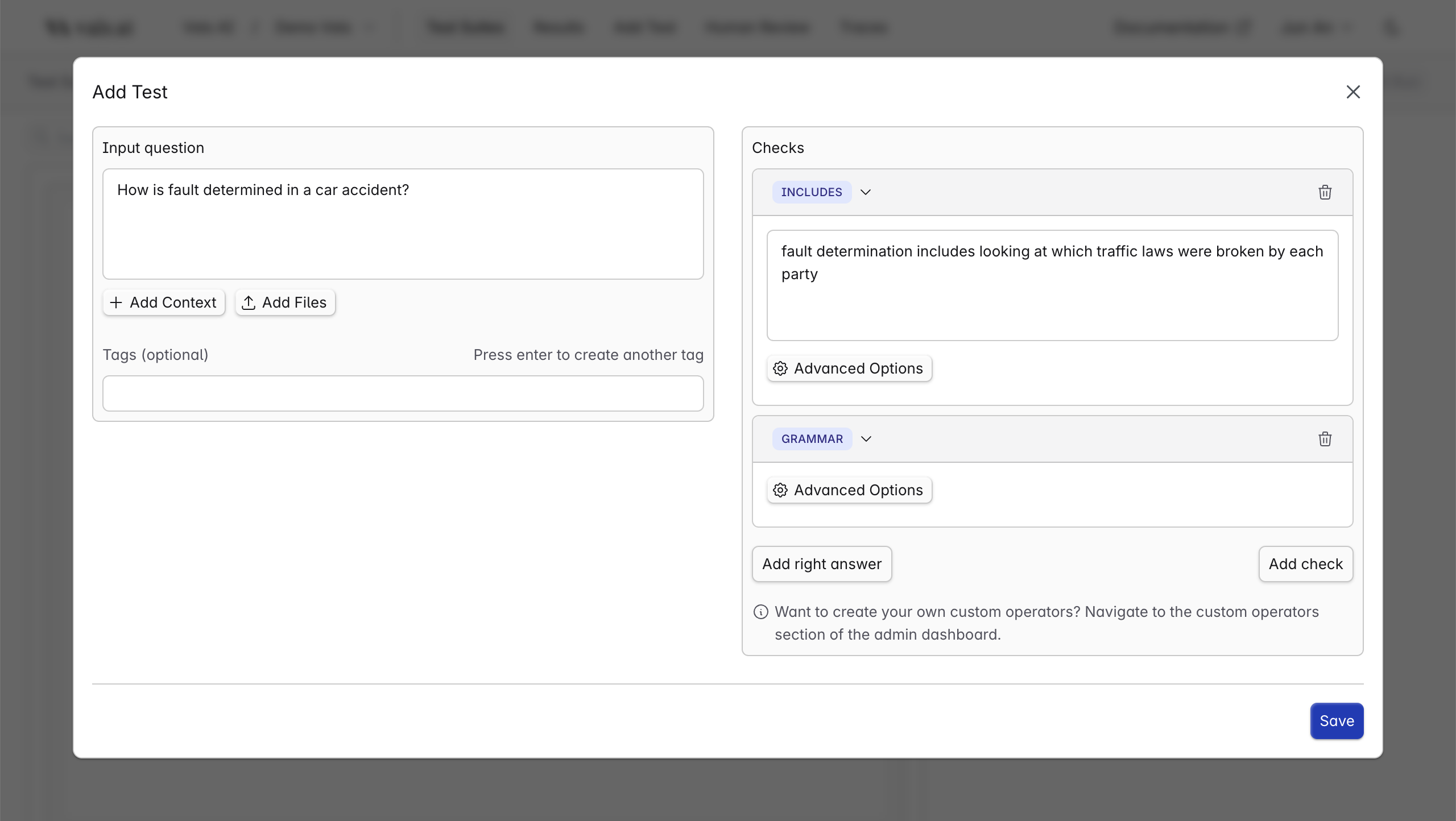
 Next, you can add your checks. Each check should verify one part or aspect of the model's output. For example, in this instance, we want to make sure that the model's output mentions something about how fault in an accident can be determined by looking at who, if anyone, broke traffic laws.
We also may want to check that the model's output is grammatically correct. We can codify both of these expectations as checks.
Next, you can add your checks. Each check should verify one part or aspect of the model's output. For example, in this instance, we want to make sure that the model's output mentions something about how fault in an accident can be determined by looking at who, if anyone, broke traffic laws.
We also may want to check that the model's output is grammatically correct. We can codify both of these expectations as checks.
 You should add multiple tests to your test suite - enough to give you confidence that your model is behaving as expected across a wide variety of user inputs.
There is a wide library of operators, each one can be used to check something different about the model. See the full list of operators [here](/web_app/operators).
## Global Checks
Often, there may be checks that should always be applied for every test. For example, you may always want to check that the model cites its sources in the output.
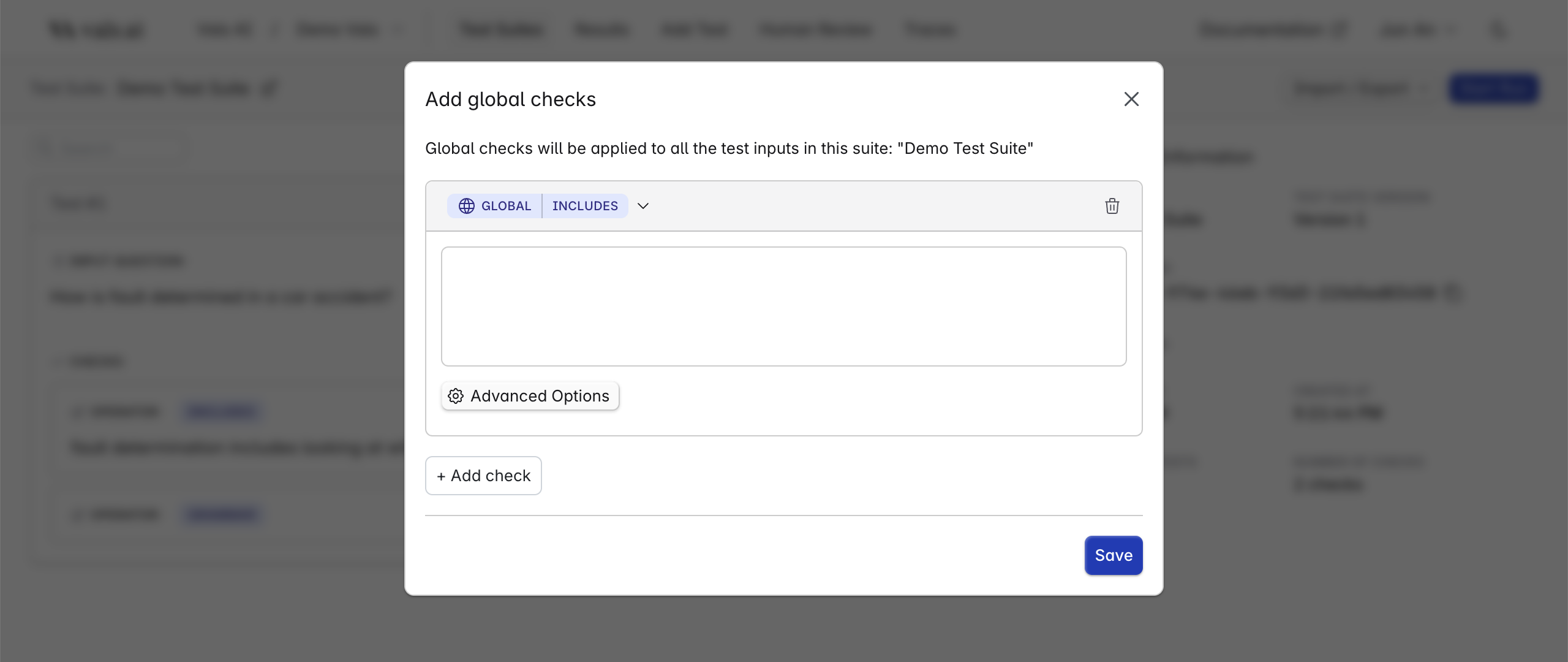
Instead of manually adding the same check to every test, you can add global checks that apply to all tests in the suite. The `Add Global Check` button is located in the action bar of the Test Suite page.
You should add multiple tests to your test suite - enough to give you confidence that your model is behaving as expected across a wide variety of user inputs.
There is a wide library of operators, each one can be used to check something different about the model. See the full list of operators [here](/web_app/operators).
## Global Checks
Often, there may be checks that should always be applied for every test. For example, you may always want to check that the model cites its sources in the output.
Instead of manually adding the same check to every test, you can add global checks that apply to all tests in the suite. The `Add Global Check` button is located in the action bar of the Test Suite page.
 ## Augmentation
Sometimes, a small phrasing change in a question can make a noticeable difference in the model's output. We provide a way to automatically test different phrasings of the same question.
To do this, simply go to the `Augment` dropdown in the top right, then select `Rephrase All`. It will create a copy of every test in the test suite, with a slightly rephrased test input. Rephrasals can be removed by pressing `Delete all rephrasals.`
Likewise, it is often useful to test how a model performs on different languages. We provide a way to automatically translate every test to a new language - simply
select `Translate` from the `Augment` menu.
## Augmentation
Sometimes, a small phrasing change in a question can make a noticeable difference in the model's output. We provide a way to automatically test different phrasings of the same question.
To do this, simply go to the `Augment` dropdown in the top right, then select `Rephrase All`. It will create a copy of every test in the test suite, with a slightly rephrased test input. Rephrasals can be removed by pressing `Delete all rephrasals.`
Likewise, it is often useful to test how a model performs on different languages. We provide a way to automatically translate every test to a new language - simply
select `Translate` from the `Augment` menu.
 ## Importing/Exporting
View the examples in [Test Suite File Handling](/web_app/import_export) for information on file format.
## Also See
* [List of Operators](/web_app/operators)
* [Adding Context to Test Suites](/web_app/contexts)
* [Advanced Test Suite Options](/web_app/modifiers)
* [Adding Right Answers to Test Suites](/web_app/right_answers)
* [Starting a Run](/web_app/run)
* [Import and Export](/web_app/import_export)
## Importing/Exporting
View the examples in [Test Suite File Handling](/web_app/import_export) for information on file format.
## Also See
* [List of Operators](/web_app/operators)
* [Adding Context to Test Suites](/web_app/contexts)
* [Advanced Test Suite Options](/web_app/modifiers)
* [Adding Right Answers to Test Suites](/web_app/right_answers)
* [Starting a Run](/web_app/run)
* [Import and Export](/web_app/import_export)